

What will you do if your marketing team finds a typo in a promo banner or a missing translation string? Let us imagine how you are doing that in a hurry – patch the codebase, run the CI/CD pipeline, and wait for the App Store review team to approve a hotfix. If you are running a fast-moving app, waiting 24-48 hours for a copy change means losing users and missing time-sensitive promos.
Standard Flutter localization guides show you how to set up static .arb files, and that’s it. That doesn’t cut it for production.
This guide walks through implementing a scalable localization architecture in Flutter using Provider and integrating Over-The-Air (OTA) updates for real-time delivery. You will be able to push translation fixes instantly to your users without app store updates.
What we will do:
- Set up a testable directory structure and configure automated local file generation.
- Write
.arbfiles with placeholders and plurals to support complex grammar. - Build a reactive
LocaleProviderthat saves preferences and falls back to the system language. - Integrate Crowdin CLI to push base strings and pull translations automatically.
- Deploy the Crowdin SDK to push real-time copy fixes, bypassing App Store reviews.
- Construct a type-safe UI dashboard where parameters and strings are verified before compilation.
Let’s go!
Example: food delivery app
Instead of generic Hello World examples, we will use the core mechanics of our food delivery dashboard. We need to handle:
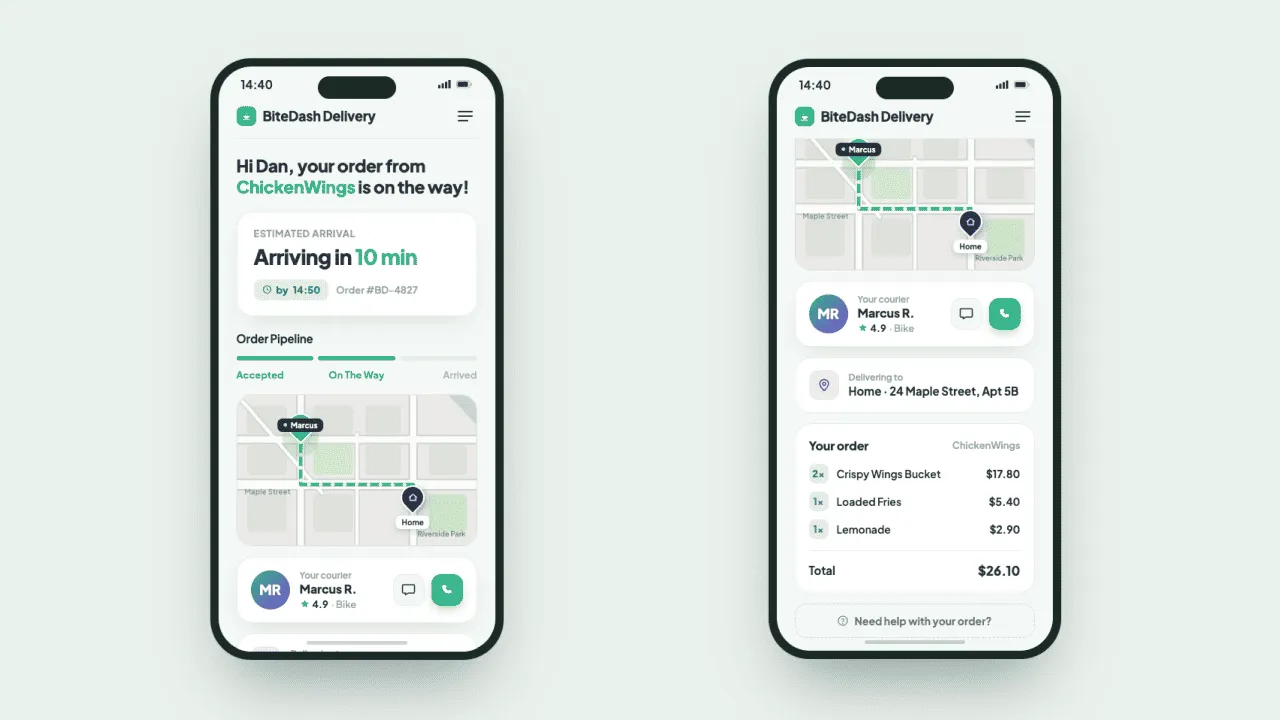
- Placeholders: Dynamic strings like “Hi
{name}, your order from{restaurant}is on the way!” - Plurals (ICU syntax): Handling countdowns like “Arriving in 1 minute” vs. “Arriving in 10 minutes”.
- OTA hotfixes: A marketing banner that product managers can modify remotely.
Step 1: Clean directory structure and dependencies
First, let’s look at the clean, testable folder structure we will use:
lib/├── l10n/│ ├── extensions/│ │ └── context_extensions.dart # BuildContext shortcuts│ ├── generated/ # Auto-generated localization classes│ ├── app_en.arb # English source template│ └── l10n.yaml # Flutter l10n config file├── providers/│ └── locale_provider.dart # Reactive state for language switching├── services/│ └── storage_service.dart # Shared Preferences persistent storage└── main.dart # App initialization & UI rootAdd the required packages to your pubspec.yaml:
dependencies:  flutter:    sdk: flutter  flutter_localizations: # Built-in localization toolkit    sdk: flutter  intl: ^0.20.2 # Required for ICU plurals/formats  provider: ^6.0.5 # State management  shared_preferences: ^2.0.15 # Persistence layer  crowdin_sdk: ^1.1.1 # Crowdin OTA integration
flutter:  generate: true # Mandatory - tells Flutter to auto-generate localization classes
Configure the localization build tool by creating l10n.yaml at the project root:
arb-dir: lib/l10ntemplate-arb-file: app_en.arboutput-localization-file: app_localizations.dartoutput-dir: lib/l10n/generatedsynthetic-package: falseStep 2: Writing the production-ready ARB file
Application Resource Bundle (.arb) files use standard JSON format. We add context descriptions and placeholder types so translators in the cloud don’t break the code.
{ "@@locale": "en", "dashboardTitle": "BiteDash Delivery", "orderStatus": "Hi {name}, your order from {restaurant} is on the way!", "@orderStatus": { "description": "Live checkout tracking status header", "placeholders": { "name": { "type": "String", "example": "Sarah" }, "restaurant": { "type": "String", "example": "Pizza Hut" } } }, "deliveryETA": "{count, plural, =0{Arriving now!} =1{Arriving in 1 minute} other{Arriving in {count} minutes}}", "@deliveryETA": { "description": "Courier arrival countdown", "placeholders": { "count": { "type": "int", "example": "12" } } }, "promoBanner": "Match Day Special: Free delivery on all pizza orders tonight!"}Step 3: Understanding ICU Syntax (placeholders and plurals)
Because Flutter uses the standard ICU syntax for localization, the build tool converts your .arb keys into type-safe Dart methods. Here is how they work under the hood:
1. Dynamic placeholders
When you define variables inside curly braces like {name}, Flutter doesn’t just treat it as text. It treats it as a method parameter.
- In the ARB file: You must explicitly define the type (e.g.,
String,int,num) and anexampleso the cloud translation platform knows how to render previews for translators. - In Dart: The auto-generated
AppLocalizationsclass will turn"orderStatus"into a positional method:
// Auto-generated signature:String orderStatus(String name, String restaurant);2. ICU plurals
Handling numbers across languages is tricky. English only uses one and other (e.g., “1 minute” vs “2 minutes”). However, other languages like Polish, French, or Arabic have much more complex plural forms (for example, French changes rules for 0, while Polish has different forms for numbers ending in 2, 3, or 4 like 1 minuta, 2 minuty, 5 minut).
The ICU syntax solves this by letting you define specific plural blocks (=0, =1, one, few, many, other):
"deliveryETA": "{count, plural, =0{Arriving now!} =1{Arriving in 1 minute} other{Arriving in {count} minutes}}"=0and=1are strict explicit matches (if the number is exactly 0 or 1).otheris the mandatory fallback clause required by Flutter for any numbers that don’t match the specific rules.
When Flutter compiles this, it generates a method that accepts an integer (int):
// Auto-generated signature:String deliveryETA(int count);At runtime, Flutter will automatically check the active locale’s specific grammatical rules and easily pick the correct text variant.
Step 4: Setting up persistence and state
We need the selected language to persist across app restarts. We will abstract SharedPreferences into a lightweight storage service.
import 'package:shared_preferences/shared_preferences.dart';
class StorageService {  final SharedPreferences _prefs;
  StorageService._(this._prefs);
  static Future<StorageService> getInstance() async {    final prefs = await SharedPreferences.getInstance();    return StorageService._(prefs);  }
  Future<void> saveLanguageCode(String code) async {    await _prefs.setString('selected_language_code', code);  }
  String? getLanguageCode() {    return _prefs.getString('selected_language_code');  }}
Next, create the LocaleProvider to handle runtime language switching, automatically fall back to the device’s native system language on first launch, and notify UI listeners when changes occur.
import 'package:flutter/material.dart';import '../services/storage_service.dart';

class LocaleProvider extends ChangeNotifier {  Locale _locale;
  Locale get locale => _locale;
  // Constructor cleanly instantiates with the ready-to-go startup language  LocaleProvider({required Locale initialLocale}) : _locale = initialLocale;
  void setLocale(Locale locale) async {    _locale = locale;    final storage = await StorageService.getInstance();    await storage.saveLanguageCode(locale.languageCode);    notifyListeners();  }}
Future<void> _init() async {  final storage = await StorageService.getInstance();  final saved = storage.getLanguageCode();
  if (saved != null) {    _locale = Locale(saved);  } else {    // First-time setup fallback: Use device's native system language    final systemLocale = WidgetsBinding.instance.platformDispatcher.locales.first;    _locale = Locale(systemLocale.languageCode);  }
  // Updates are nested within the async flow to ensure proper order of execution  _isLoading = false;  notifyListeners();}
Step 5: Connect Crowdin CLI
Before jumping into live cloud updates, you need to establish the baseline translation pipeline. Instead of manually emailing .arb files to translators, we automate the file sync using Crowdin.
1. Project setup
- Create a localization project in your Crowdin console and select your source (English) and target languages (for example, Spanish).
- Install the Crowdin CLI on your local machine or build server to manage file transfers via the terminal.
2. Configure the Cloud Sync (crowdin.yml)
Create a crowdin.yml file at the root of your Flutter project. This configuration maps your local environment directly to the Crowdin file repository:
project_id: "YOUR_PROJECT_ID"api_token_env: "CROWDIN_PERSONAL_TOKEN"base_path: "."
files: - source: /lib/l10n/app_en.arb translation: /lib/l10n/app_%two_letters_code%.arb3. Syncing files via terminal
Now, you can push your source strings and pull completed translations with two simple commands:
# 1. Upload your baseline app_en.arb template to Crowdincrowdin push
# 2. Download completed translations directly into your /lib/l10n/ foldercrowdin pull
Step 6: Upgrading to OTA live updates
While the file-sync workflow is great for scheduled app releases, hot-fixing a translation typo or pushing an urgent marketing promo line shouldn’t require a full App Store deployment cycle. This is where we upgrade our setup to Crowdin Over-The-Air (OTA).
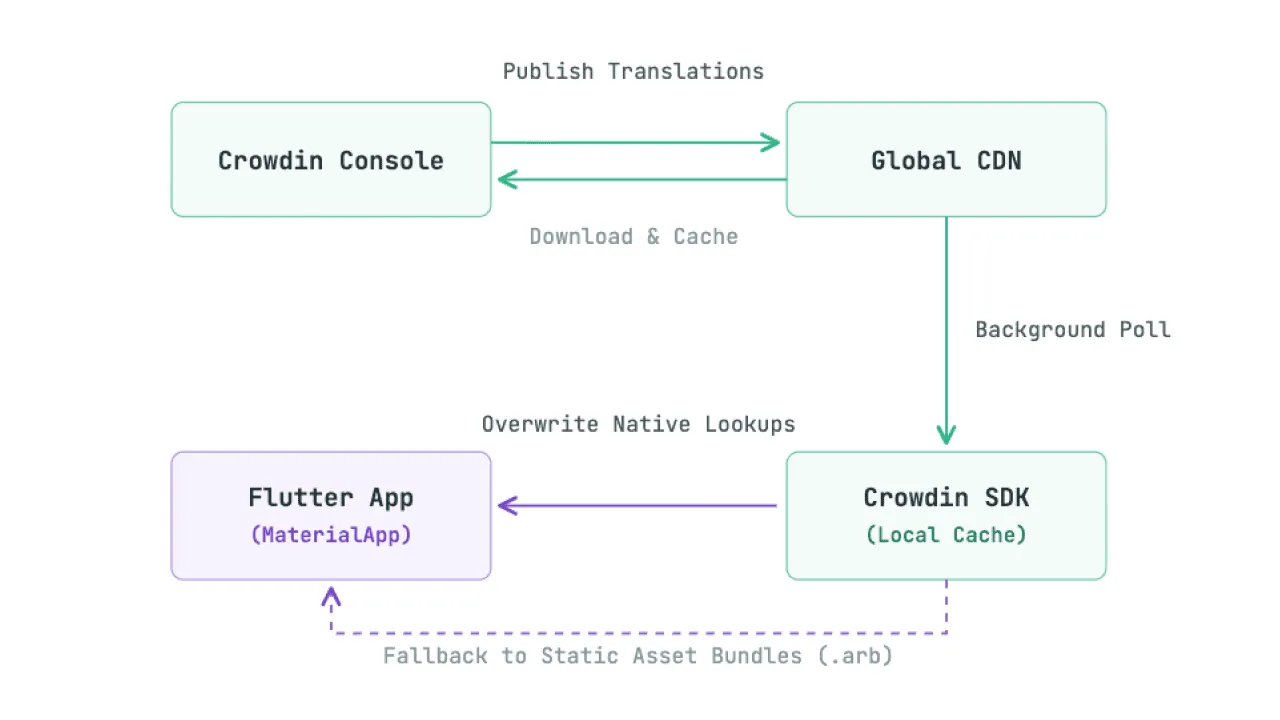
Instead of relying purely on the static assets compiled inside the app binary, the crowdin_sdk intercepts native string lookup requests and applies live overrides downloaded from Crowdin’s global Content Delivery Network (CDN).
OTA architecture overview
Here is how data flows from Crowdin console down to your Flutter application at runtime:
1. Set up an OTA distribution
In your Crowdin Project Settings, navigate to Distributions, create a new mobile distribution channel, and copy your unique Distribution Hash.
2. Run the Crowdin local code generation
The Crowdin SDK requires you to build a bridge between local dynamic asset loading and native lookups. To generate the underlying CrowdinLocalization delegation bindings, run:
dart run crowdin_sdk:genOTA cache and lifecycle delay
When using Over-The-Air translation delivery, junior developers often make the mistake of modifying a string in the Crowdin dashboard, clicking “Save”, and expecting an open app simulator to immediately change text on the screen.
In production, it doesn’t work this way due to how network efficiency and user experience are balanced:
- Background caching strategy: The
crowdin_sdkexecutes network requests asynchronously on a background thread. WhenCrowdin.init()is invoked, it checks the local device cache first to ensure a zero-latency layout paint. It then checks the Crowdin CDN for updates in the background. - Lifecycle delay: If a new translation bundle is found on the CDN, the SDK downloads it, writes it to local storage, and caches it. However, to prevent UI text from jarringly transforming or flashing in front of the user’s eyes mid-session, these downloaded updates typically take effect on the subsequent application launch or when a clean hard-restart occurs.
- Bandwidth optimization: The
updatesInterval: const Duration(minutes: 15)parameter governs how frequently the SDK will poll the CDN. Setting this too low drains user battery and cellular data; 15 to 30 minutes is the production sweet spot for fast-moving apps.
Always prepare your QA and product management teams for this behavior: dynamic OTA copy fixes are “instant” compared to a 48-hour App Store review cycle, but they still respect the application’s lifecycle boundaries.
Step 7: Configuring the app entry point (lib/main.dart)
The lib/main.dart file houses two distinct responsibilities:
- Native bindings and initialization (
void main()): Where we configure the asynchronous storage and cloud components before anything renders. - Root Widget Layer (
class MyApp): Where the framework connects state notification streams down into the UI engine.
Create or update your lib/main.dart file with this unified implementation:
import 'package:flutter/material.dart';import 'package:provider/provider.dart';import 'package:crowdin_sdk/crowdin_sdk.dart';import 'package:shared_preferences/shared_preferences.dart'; // Direct dependency for startupimport 'l10n/generated/app_localizations.dart';import 'l10n/generated/crowdin_localizations.dart';import 'providers/locale_provider.dart';import 'bite_dash_dashboard.dart';
void main() async {  // Required to securely fetch SharedPreferences & connect Crowdin channels  // before the root MaterialApp UI tree mounts.  WidgetsFlutterBinding.ensureInitialized();
  // Pro-Tip: Read the locale code from storage directly during the bootstrap phase.  // This completely eliminates cold-start UI loading flickers.  final prefs = await SharedPreferences.getInstance();  final savedLanguageCode = prefs.getString('selected_language_code');
  Locale initialLocale;  if (savedLanguageCode != null) {    initialLocale = Locale(savedLanguageCode);  } else {    // Graceful fallback to native device settings if no choice is stored yet    final systemLocale = WidgetsBinding.instance.platformDispatcher.locales.first;    initialLocale = Locale(systemLocale.languageCode);  }
  // Connect engine runtimes straight to Crowdin's Global CDN  await Crowdin.init(    distributionHash: 'YOUR_CROWDIN_DISTRIBUTION_HASH_HERE',    connectionType: InternetConnectionType.any,    updatesInterval: const Duration(minutes: 15),  );// Pre-load translation strings for the initial locale to ensure// they are ready before the UI hierarchy mounts.await Crowdin.loadTranslations(initialLocale);runApp(  ChangeNotifierProvider(    create: () => LocaleProvider(initialLocale: initialLocale),    child: const MyApp(),  ),);  runApp(    ChangeNotifierProvider(      // Pass the fully materialized initial locale straight into the state constructor      create: () => LocaleProvider(initialLocale: initialLocale),      child: const MyApp(),    ),  );}
class MyApp extends StatelessWidget {  const MyApp({super.key});
  @override  Widget build(BuildContext context) {    // Grab the active locale state emitted by our provider    final provider = Provider.of<LocaleProvider>(context);
    return MaterialApp(      locale: provider.locale,      // Intercepts framework text requests to apply real-time cloud overrides instantly      localizationsDelegates: CrowdinLocalization.localizationsDelegates,      supportedLocales: AppLocalizations.supportedLocales,      home: const BiteDashDashboard(),    );  }}
Step 8: Platform configuration (iOS mandatory step)
While Android dynamically checks asset targets and reads localization codes at runtime automatically, iOS takes a strict, security-focused approach. iOS will reject or completely ignore dynamically requested languages from the Crowdin CDN unless they are explicitly pre-registered in the application bundle’s metadata payload.
To configure this, open ios/Runner/Info.plist and append your application’s supported localization array within the main <dict> block:
<key>CFBundleLocalizations</key><array> <string>en</string> <string>es</string></array>Rule: New languages require a Store update on iOS
It is critical for you and your product teams to understand that Info.plist is a static configuration that cannot be changed after compile time.
This is a standard operating system behavior for iOS, not a specific limitation or requirement of the Crowdin SDK. Apple strictly enforces metadata checks at the system level for all iOS applications.
-
Problem: If your marketing or localization team decides to suddenly target a new country (for example, adding French (
fr) or German (de) inside the Crowdin console)the Crowdin OTA SDK cannot bypass this iOS metadata check. If a user changes their device language to German, iOS checksInfo.plistfirst. Because<string>de</string>is missing from the compiled binary payload, iOS will refuse to pass that language code context down to Flutter, causing the SDK to drop back to your baseline English fallback string array. -
Solution: Whenever business stakeholders request a brand-new target locale, the engineering team must manually append that language string identifier to the local
Info.plistfile, run a fresh production build compilation, and submit a complete application update through App Store Connect.
Always maintain a master list of planned expansion territories. Pre-registering languages in your Info.plist ahead of time (even before translations are written in Crowdin) is an elite architectural habit that ensures your over-the-air channel remains fully unhindered.
iOS localization tutorial with SwiftUI demo project
Step 9: Clean up your build context with a Dart extension
Writing AppLocalizations.of(context)!.stringName over and over cluttered your UI code, creates massive lines, and adds unnecessary boilerplate. To keep your code clean, type-safe, and highly readable, we can leverage a Dart Extension.
Create a new file named context_extensions.dart inside a helpers or extensions directory (e.g., lib/l10n/extensions/context_extensions.dart) and add the following code:
import 'package:flutter/material.dart';import '../generated/app_localizations.dart';
extension LocalizedContext on BuildContext {  /// A clean shortcut to access localized strings via the current widget context.  /// Usage: context.l10n.yourStringKey  AppLocalizations get l10n => AppLocalizations.of(this)!;}
Step 10: Implement type-safe localized UI components
Now, we consume the strings in our dashboard. Because the build engine converts .arb assets into strongly-typed Dart code, we get compile-time checks for all placeholder parameters and plurals.
Context extension cleans up the code layout to follow architectural standards.
import 'package:flutter/material.dart';import 'package:provider/provider.dart';import 'l10n/extensions/context_extensions.dart'; // Import the new extension shortcutimport 'providers/locale_provider.dart';
class BiteDashDashboard extends StatelessWidget {  const BiteDashDashboard({super.key});
  @override  Widget build(BuildContext context) {    // Tip: Set 'listen: false' here. We only need the provider instance    // to call the `setLocale` method, not to re-trigger this entire massive layout tree.    // The framework's core MaterialApp handles tracking and rebuilding translation strings down the line.    final localeProvider = Provider.of<LocaleProvider>(context, listen: false);
    // Mock live environment values    String customerName = "Alex";    String restaurantName = "Taco Bell";    int deliveryMinutesRemaining = 12;
    return Scaffold(      appBar: AppBar(        title: Text(context.l10n.dashboardTitle),        actions: [          // We use a Selector widget here to rebuild ONLY the drop-down menu asset itself          // when a switch occurs, keeping our layout lightning fast.          Selector<LocaleProvider, Locale>(            selector: (_, provider) => provider.locale,            builder: (context, activeLocale, _) {              return DropdownButton<Locale>(                value: activeLocale,                items: const [                  DropdownMenuItem(value: Locale('en'), child: Text('🇺🇸 English')),                  DropdownMenuItem(value: Locale('es'), child: Text('🇪🇸 Español')),                ],                onChanged: (newLocale) {                  if (newLocale != null) {                    localeProvider.setLocale(newLocale);                  }                },              );            },          ),        ],      ),      body: Padding(        padding: const EdgeInsets.all(16.0),        child: Column(          crossAxisAlignment: CrossAxisAlignment.start,          children: [            // Passing parameters safely into localized string templates            Text(              context.l10n.orderStatus(customerName, restaurantName),              style: const TextStyle(fontSize: 18, fontWeight: FontWeight.bold),            ),
            const SizedBox(height: 16),
            // This component pulls live text straight from Crowdin OTA targets            Container(              padding: const EdgeInsets.all(12),              width: double.infinity,              color: Colors.orange.shade50,              child: Text(                context.l10n.promoBanner,                style: const TextStyle(color: Colors.orange.shade900, fontWeight: FontWeight.w700),              ),            ),
            const SizedBox(height: 24),
// ICU Plural implementation handling plural branches natively Card( child: ListTile( leading: const Icon(Icons.delivery_dining, size: 36), title: const Text("Estimated Delivery"), subtitle: Text(context.l10n.deliveryETA(deliveryMinutesRemaining)), ), ), ], ), ), ); }}Conclusion
Separate your local application state via Provider and route string lookups through the Crowdin SDK for a clean, scalable localization setup. This allows product and localization teams to tweak marketing copies or add entirely new target languages without interrupting the engineering team’s focus on feature code.
FAQ
What happens if a user opens the app offline? Which translations will they see?
If there is no internet connection, crowdin_sdk immediately falls back to the static, offline-safe .arb file bundles that were compiled directly into your app binary. Because we run crowdin pull and generate local Dart classes during development, your users will always see a graceful fallback instead of broken keys or empty text fields.
Can I add a completely new language purely via Crowdin OTA without a store update?
On Android: Yes. On iOS: No. iOS enforces a strict system-level security check and will completely ignore dynamically requested assets unless that language identifier is pre-registered in your compiled ios/Runner/Info.plist metadata bundle. This is a native Apple restriction, not a limitation of Crowdin. If the language is missing from Info.plist, iOS refuses to pass the context to Flutter, causing the app to drop back to your English baseline.
Does using Crowdin OTA drain the user’s cellular data or battery?
Not if you configure your polling intervals wisely. By setting updatesInterval: const Duration(minutes: 15), the SDK throttles network queries so it only checks the CDN once every 15 minutes at most. A window of 15 to 30 minutes is the production sweet spot for high-traffic, fast-moving apps.

Yuliia Makarenko
Yuliia Makarenko is a marketing specialist with over a decade of experience, and she’s all about creating content that readers will love. She’s a pro at using her skills in SEO, research, and data analysis to write useful content. When she’s not diving into content creation, you can find her reading a good thriller, practicing some yoga, or simply enjoying playtime with her little one.